- Published on
How to Add Emergency Contact and Medical Info to Your Phone's Lock Screen (Android & iPhone)
- Authors

- Name
- Khalil
- @Im_Khalil
These days, your smartphone is your digital hub. It holds your payment cards, travel tickets, passwords, and private conversations. Because of biometric locks, face recognition, and PINs, our phones are more secure than ever.
However, in a sudden medical crisis, car accident, or emergency situation where you are incapacitated or unable to speak, a locked smartphone can prevent paramedics, doctors, or helpful bystanders from identifying you or contacting your loved ones.
Setting up Emergency Information and Medical ID on your lock screen takes less than two minutes, keeps your personal data completely secure, and can literally save your life.
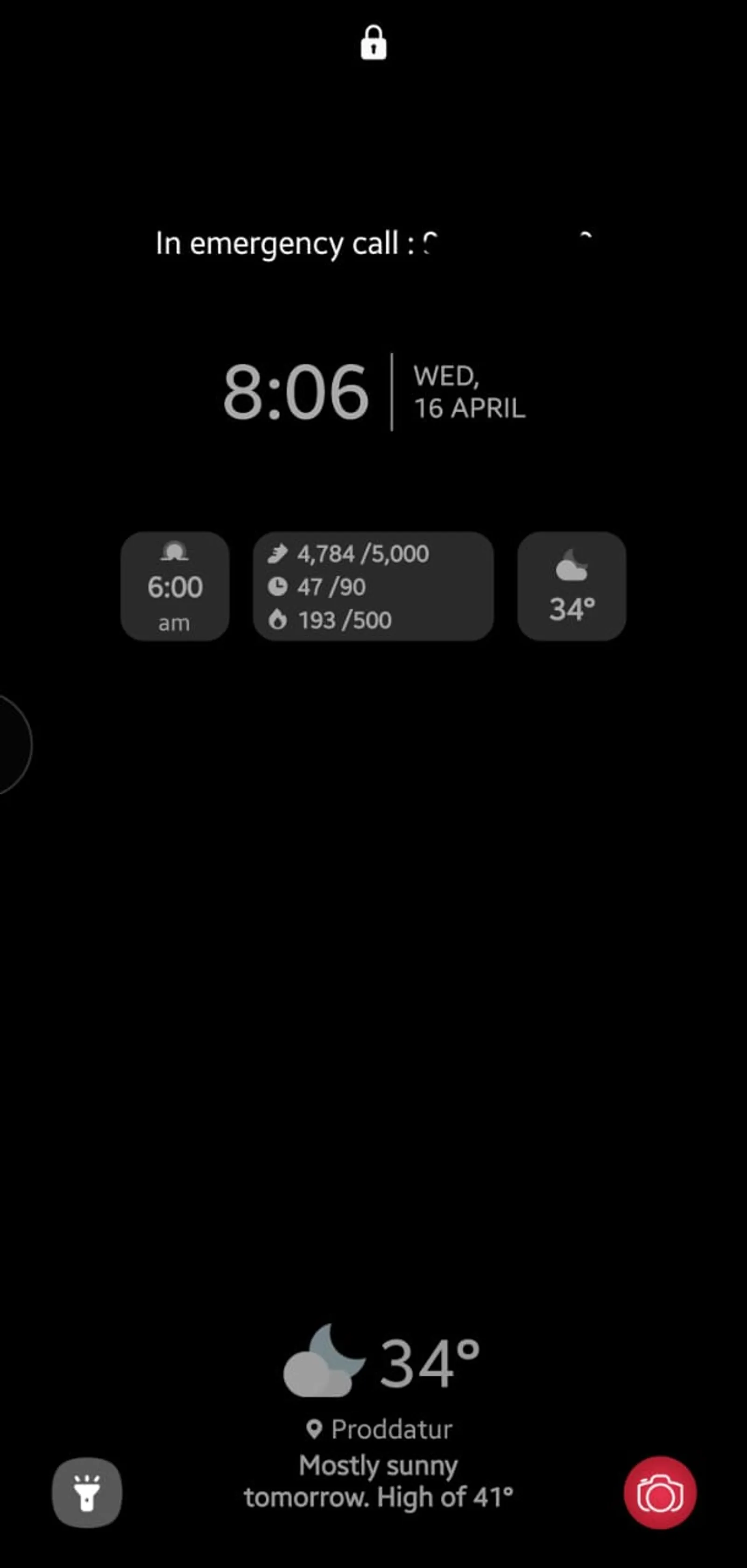
Why Every Smartphone Needs Lock Screen Emergency Info
When emergency services or first responders arrive at an incident, their first priority is patient care and identification. Having accessible lock screen info provides:
- Immediate Family Notification: Paramedics or hospital staff can call your trusted ICE (In Case of Emergency) contact directly from the locked dialer.
- Critical Medical Details: Displays crucial health data such as your blood group, severe allergies (e.g., Penicillin, Peanuts), chronic conditions (e.g., Diabetes, Asthma), and ongoing medications.
- Lost Device Recovery: If you misplace your phone, a Good Samaritan can contact your secondary number or email without unlocking your device.
Method 1: Samsung Galaxy Devices (One UI)
Samsung makes it very easy to configure medical info and emergency contacts within One UI:
Step-by-Step Instructions:
- Open Settings on your Samsung Galaxy phone.
- Scroll down and tap Safety and emergency.
- Tap Medical info. Fill in your:
- Medical conditions
- Allergies & current medications
- Blood type
- Toggle on Show on Lock screen.
- Go back to Safety and emergency and tap Emergency contacts.
- Tap Add member to select contacts from your address book.
- Toggle on Show on Lock screen.
Method 2: Google Pixel & Stock Android Devices (Android 12, 13, 14, 15+)
Google Pixel and standard Android devices use Android's native Emergency Info system:
Step-by-Step Instructions:
- Open Settings.
- Tap Safety & emergency (or About phone > Emergency information on older versions).
- Tap Medical information to enter your name, address, blood type, allergies, and organ donor status.
- Tap Emergency contacts > Add contact to designate trusted family or friends.
- Ensure the setting to allow emergency info access from the lock screen is enabled.
Method 3: Universal Android Trick (Add Custom Lock Screen Text)
If your device manufacturer uses a custom Android skin (such as Xiaomi MIUI/HyperOS, OnePlus OxygenOS, or Motorola) or you simply want a direct phone number visible on the lock screen:
- Open Settings > Display (or Wallpaper & style / Lock screen).
- Look for Lock screen message, Lock screen text, or Add text on lock screen.
- Type a concise emergency note, for example:
ICE: Call Sarah at +1 (555) 019-2834 | Blood Group: O+ - Tap Save or Done.
The text will now permanently appear directly beneath the clock widget on your lock screen.
Method 4: Apple iPhone (iOS Medical ID)
On iOS, emergency information is handled securely through the Apple Health app:
Step-by-Step Instructions:
- Open the Health app on your iPhone.
- Tap your profile picture in the top-right corner.
- Select Medical ID > Tap Edit.
- Enter your medical conditions, allergies, medications, and blood type.
- Scroll down to Emergency Contacts and select your contacts and their relationship to you.
- Enable Show When Locked (this allows emergency access without unlocking Face ID/Touch ID).
- (Optional) Enable Share During Emergency Call to automatically send your Medical ID to dispatchers when you trigger Emergency SOS.
- Tap Done.
How First Responders Access This on a Locked Screen
It's helpful to test this yourself to see what a paramedic or bystander will see:
- On Android (Samsung / Pixel):
- Wake the screen and swipe up to the PIN/Pattern screen.
- Tap the Emergency call button at the bottom.
- Tap Medical info or Emergency information at the top or bottom of the dialer.
- On iPhone:
- Wake the phone and swipe to the passcode entry screen (or press and hold the Side button + Volume button).
- Tap Emergency in the bottom-left corner.
- Tap Medical ID in the bottom-left of the keypad.
Best Practices for Choosing Emergency Contacts
- Notify the Person: Always inform the contacts you designate so they know they are your primary emergency contact.
- Save Numbers with International Codes: Include country codes (e.g.,
+1,+91,+44) so calls work when traveling abroad. - Keep it Updated: Periodically review your medical details, especially after changes in medications, diagnoses, or contact phone numbers.
Summary Table
| Device Platform | Navigation Path | Key Setting |
|---|---|---|
| Samsung Galaxy | Settings > Safety and emergency | Show on Lock screen |
| Google Pixel | Settings > Safety & emergency | Medical info & Emergency contacts |
| Universal Android | Settings > Display > Lock screen text | Direct contact note |
| Apple iPhone | Health app > Medical ID | Show When Locked |
Taking two minutes to set this up today provides peace of mind for you and vital clarity for those helping you in an emergency.
You might also like to read
- 1.Essential ADB Commands: A Practical Developer Cheat Sheet
- 2.Purging Static Resources in Akamai. Why It Did Not Fix a Stale Font
- 3.AEM Caching Series 1 - Cache Basics And Foundational Dispatcher Invalidation
- 4.AEM Caching Part 2 - Practical Mid-Level Strategies for Dynamic Content and Dispatcher Configuration
- 5.AEM Caching Part 3 - High-Traffic Architecture, Multi-CDN Design, GraphQL Caching, and System-Level Stability