- Published on
How to Disable Annoying Chrome Notifications on Desktop and Mobile
- Authors

- Name
- Khalil
- @Im_Khalil
Real-time desktop or browser notifications for essential tools like incoming emails, calendar events, or team chats (like Slack or Teams) make sense. But random blogs, e-commerce stores, and clickbait websites asking for permission to send you push notifications the moment you land on their page? That quickly becomes a frustrating distraction.
Worse, some deceptive websites trick users with fake captcha prompts ("Click Allow to verify you are human") that flood your desktop with spam ads disguised as system alerts.
If you are tired of constant pop-ups asking for notification permissions or rogue alerts appearing in the corner of your screen, here is a complete guide to take back control of your browser.
Method 1: Block All Future Notification Prompts (Desktop)
If you never want any website to prompt you for push notifications again, you can turn off notification requests entirely in Chrome on Windows, macOS, and Linux.
Quick Shortcut:
- Open Google Chrome.
- Paste the following URL into your address bar and press Enter:
chrome://settings/content/notifications
Step-by-Step Navigation:
- Click the three vertical dots (menu) in the top-right corner of Chrome.
- Select Settings.
- In the left navigation panel, click Privacy and security.
- Click on Site Settings.
- Under the Permissions section, select Notifications.
- Under Default behavior, select "Don't allow sites to send notifications".
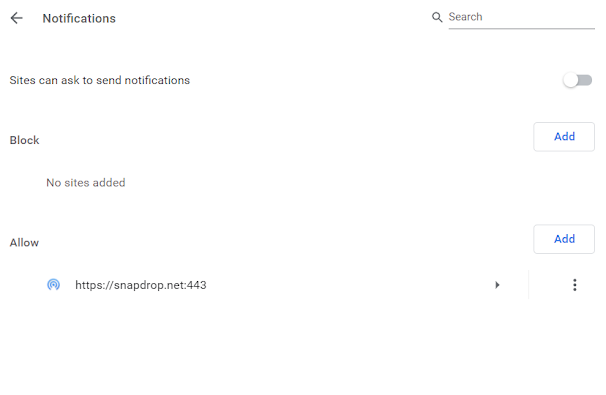
Once selected, websites will no longer show pop-up prompts asking to send you notifications.
Method 2: Use "Quieter Messaging" (Recommended Balance)
If you occasionally want notifications from trusted productivity web apps (like Google Calendar, Gmail, or WhatsApp Web) but hate intrusive pop-up dialogs:
- Navigate back to
chrome://settings/content/notifications. - Under Default behavior, keep "Sites can ask to send notifications" checked.
- Check the option: "Use quieter messaging (blocks notification prompts from interrupting you)".
With this enabled, Chrome automatically silences notification prompts and collapses them into a subtle bell icon in the address bar without showing a full dialog box.
Method 3: Remove Permissions for Existing Annoying Sites
If you accidentally clicked "Allow" on a spam website in the past, blocking future prompts won't automatically stop sites that already have permission. Here is how to revoke permissions for specific websites:
- Go to
chrome://settings/content/notifications. - Scroll down to the "Allowed to send notifications" section.
- Locate the suspicious or unwanted website in the list.
- Click the three vertical dots next to the website URL.
- Choose Remove (resets permission) or Block (permanently denies permission).
Pro Tip: If a specific website is spamming you right now, click the tune icon / padlock directly to the left of the URL in the address bar, toggle the Notifications switch to Off, or click Reset permissions.
Method 4: How to Disable Chrome Notifications on Android
On Android devices, website push notifications often appear directly in your device notification tray and vibrate your phone. To disable them:
- Open the Chrome app on your Android phone or tablet.
- Tap the three dots in the top-right corner and select Settings.
- Under Basics, tap Notifications.
- Under the Sites section, toggle All "Sites" notifications to Off (to block everything), or scroll through the list to disable individual offending websites.
- Alternatively, tap Site settings > Notifications to toggle the default permission behavior.
Method 5: Stop Notifications on iOS (iPhone & iPad)
On iOS and iPadOS, web push notifications are strictly opt-in and handled via Web Push in Safari and Chrome. If you want to disable browser alerts on iPhone:
- Open device Settings.
- Scroll down and tap Chrome.
- Tap Notifications and toggle Allow Notifications to Off.
How to Clean Up Rogue Notification Spam (Malware / Fake Antivirus Popups)
If you see fake "Virus Detected!" or "Renew Your Subscription" alerts popping up repeatedly from your system tray even when Chrome appears closed:
- Check Chrome Background Apps: Chrome may be running background notification services. Open
chrome://settings/systemand toggle off "Continue running background apps when Google Chrome is closed". - Inspect Extensions: Malicious extensions can trigger spam. Open
chrome://extensions/and disable or remove any extension you don't explicitly recognize. - Reset Chrome Settings: If spam persists, navigate to
chrome://settings/resetand select "Restore settings to their original defaults". This resets homepage, search engine, and disables all extensions without wiping your bookmarks or saved passwords.
Summary Checklist
| Action | Settings Location |
|---|---|
| Block all future pop-ups | chrome://settings/content/notifications > Don't allow sites to send notifications |
| Quiet mode | chrome://settings/content/notifications > Use quieter messaging |
| Remove spam site | chrome://settings/content/notifications > Allowed to send notifications > Three dots > Block |
| Manage on Android | Chrome Settings > Notifications > Sites |
By adjusting these permissions, you can browse without interruptions while keeping your workspace clean and productive.